Split URL testing

Split URL testing for full-page experiments

Test completely different pages, flows, and funnels without slowing your site or breaking tracking. Optibase lets you split traffic across URLs cleanly so you can test ideas with confidence and grow faster.
Full page testing: Test completely different pages and layouts.
Performance: No redirects, no flicker, no speed loss.
Clean tracking: UTMs and attribution stay intact.
Header image
Join 1800+ companies already testing with Optibase
Easy split URL testing

Test beyond small changes

Optibase lets you split test full pages and new ideas, not just small edits. Try different layouts, flows, and URLs without breaking your setup. All tests stay clean, trackable, and safe for your campaigns.

Test full page designs

Try completely different pages. Test new layouts, styles, or long and short pages without breaking your setup.

Optimize full flows and funnels

Test full signup flows, pricing pages, and onboarding paths on new URLs to see which journey helps more users finish.

Perfect for paid ads and UTMs

Send ads to each page version without losing UTM or campaign data. Tracking stays clean and results stay accurate.
No performance loss

Split URL tests with no delay

Optibase lets you split test full pages without slowing your site. Your pages load fast, stay stable, and show the right version at once. There is no flicker, no delay, and no changes that harm your SEO or your UX.

Instant page delivery

Pages load on their own URL with no redirect or delay. Each version feels fast and stable for all visitors and campaigns.

Keep UTMs and ads clean

Paid traffic loads the right page instantly. UTMs stay intact, and your split tests do not slow down ad clicks or tracking.

SEO stays fully safe

Each URL behaves like a normal page, with no flicker or script delays. Search engines see clean signals and full page speed.
Track results across URLs

See which page wins

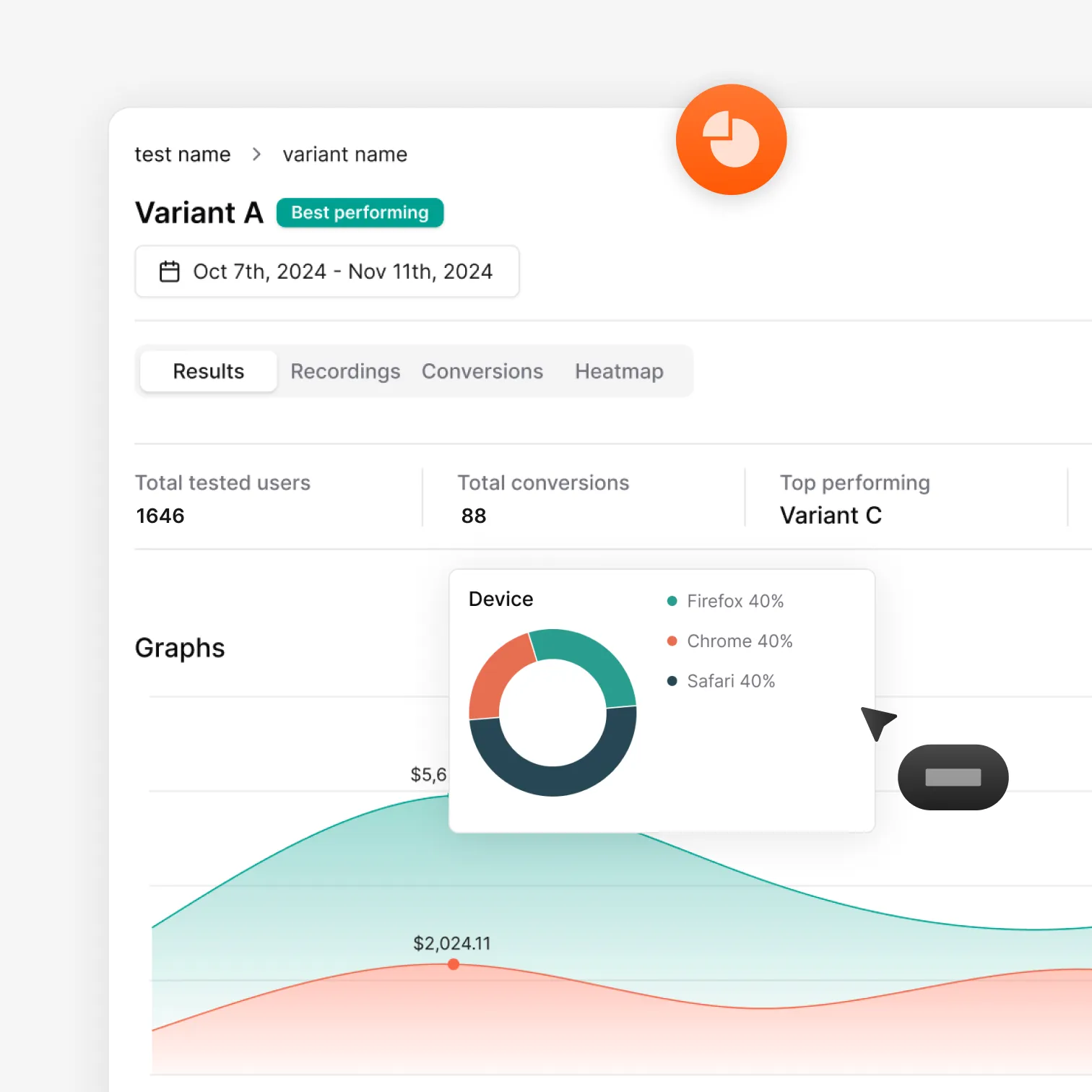
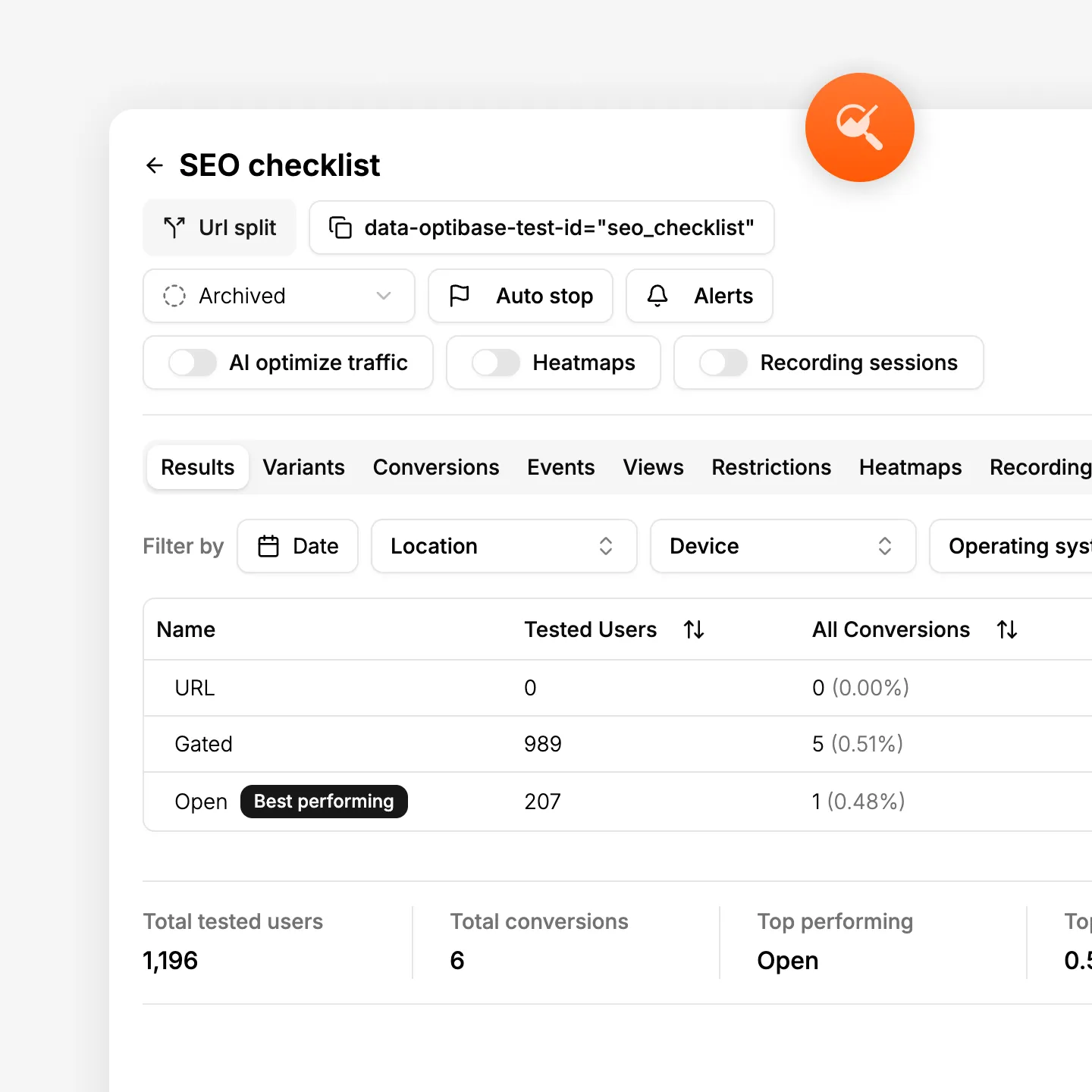
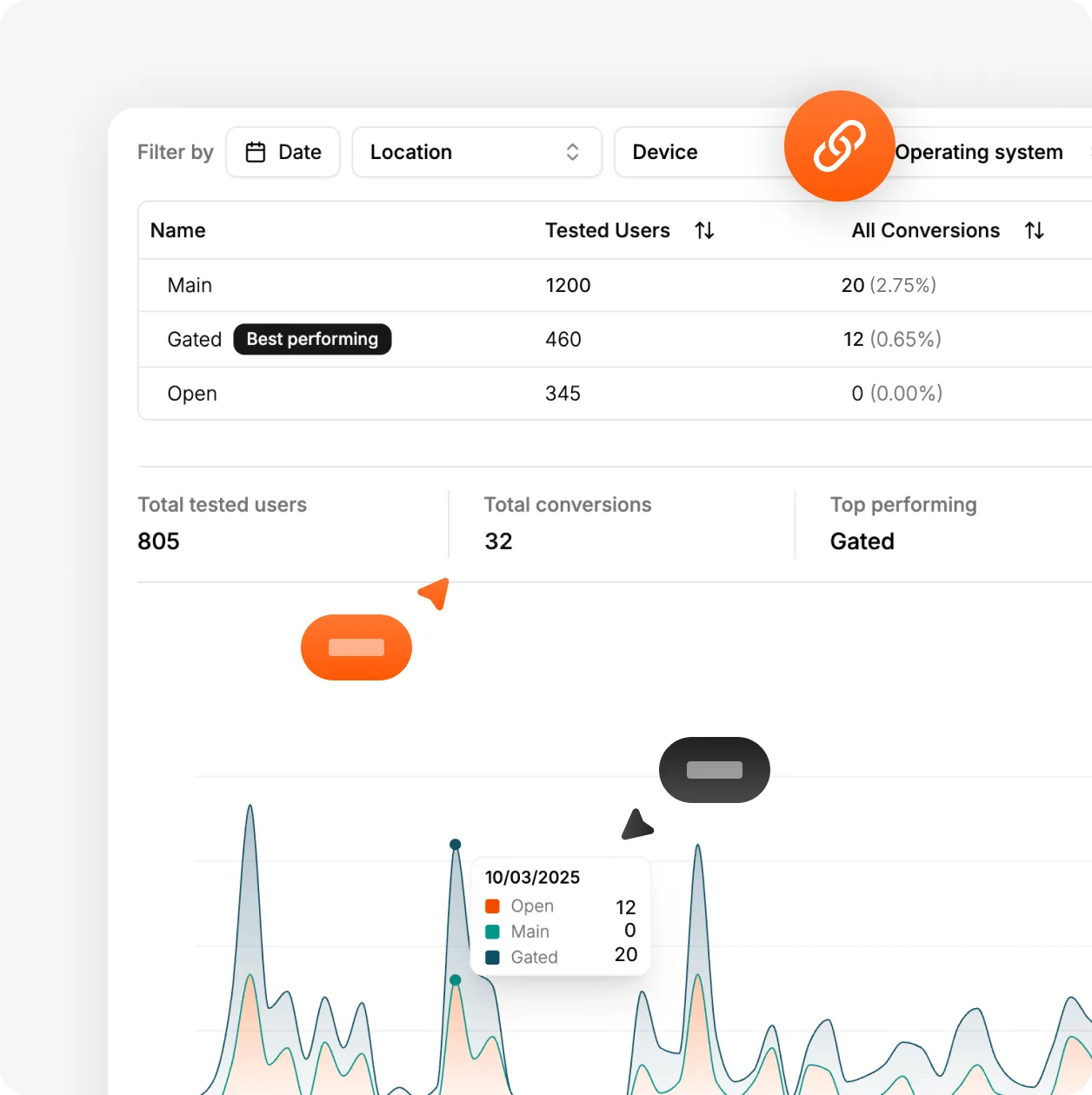
Optibase makes it easy to track results across different URLs. You can follow clicks, forms, and full flows without losing data. Every page stays easy to compare so you can see which one wins.

Track each page clearly

See how each page performs across clicks, forms, and views. All results stay clean even when pages use different URLs.

Simple reporting

Get daily, weekly, or monthly updates. Reports show which page brings more users to your goal and why it performs better.

Works with your tools

Send your test data to GA4, Mixpanel, or HubSpot. Use our API to push results anywhere, even when pages have different URLs.
How it works

Set up a split URL test in minutes

Build your page variants in Webflow, add the URLs, set your goals, and start sending traffic. Everything loads fast, tracks cleanly, and shows clear results across all pages.

Install Optibase

Install Optibase with the Webflow App or add one script to your site. The app connects your project automatically, and the script works on every page without extra setup. You only need to install it once, even if your split test uses many URLs or landing pages. After this, your site is ready for testing.

Create your page variants

Build each version of your page in Webflow as its own URL. You can make as many variants as you want with different layouts, styles, or full flows. There is no extra setup needed on any page. Once your pages are ready, you connect their URLs in Optibase and use the same goals for all variants.

Set your conversions

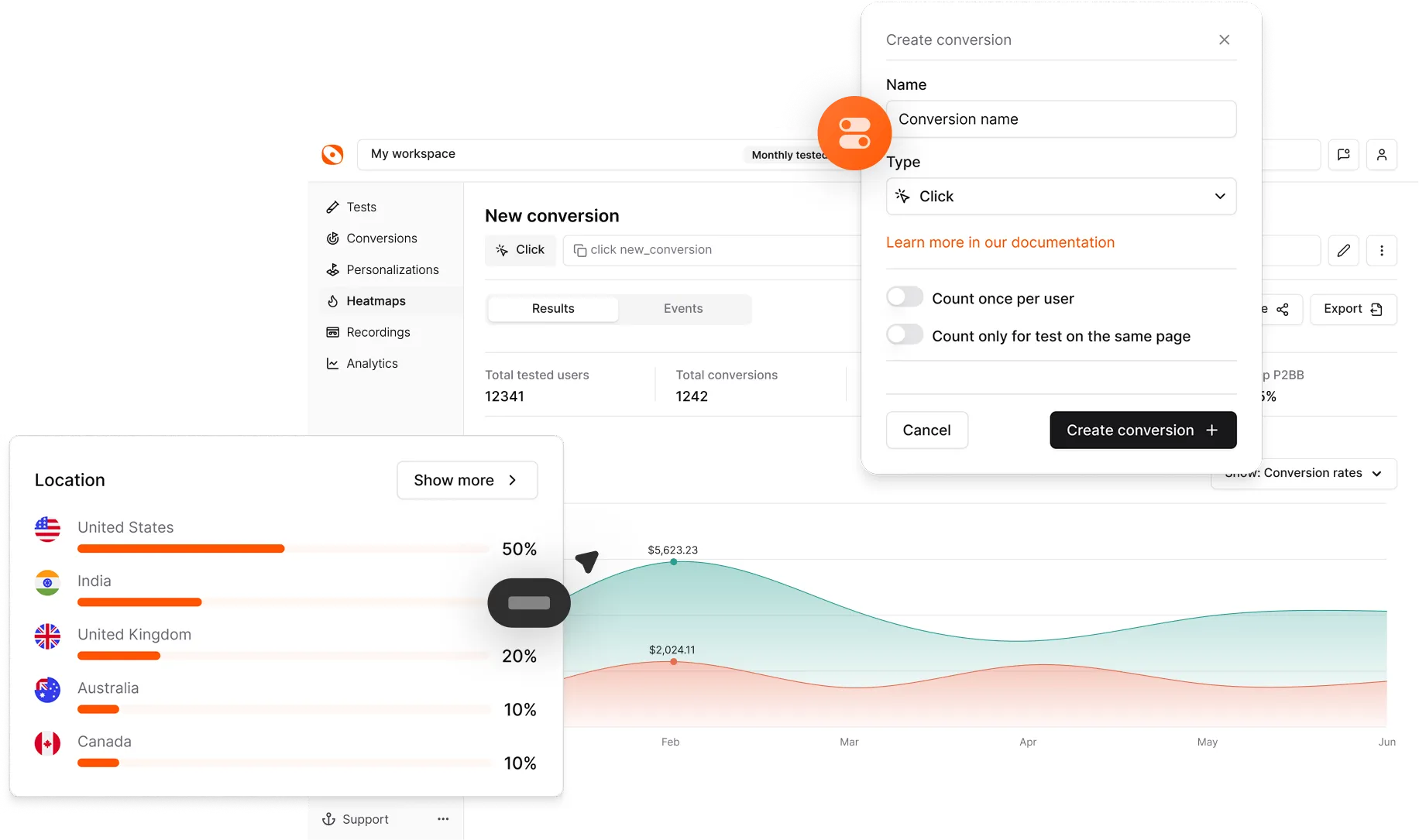
Choose how you will measure success for your split test. You can track clicks, form submits, page views, scroll depth, time on page, or custom events. Mark elements with the Webflow App or add IDs yourself. All variants share the same goals, so each page is judged in a fair and clear way.

Choose audience and traffic split

Pick who should see each version of your test. You can target visitors by location, screen size, browser, or operating system. Set a manual split if you want full control, or let AI pick the best mix for you. Your variants are already in the Webflow Designer, so you know exactly what each visitor will see.

Run your test

Turn your split test on with one click in Optibase. Traffic begins flowing to each page right away with no redirects or slowdowns. UTMs stay intact for paid campaigns, and every visit is tracked cleanly across all URLs. You can watch the live status at any time and let auto-stop rules end the test when a winner appears.

Analyze results

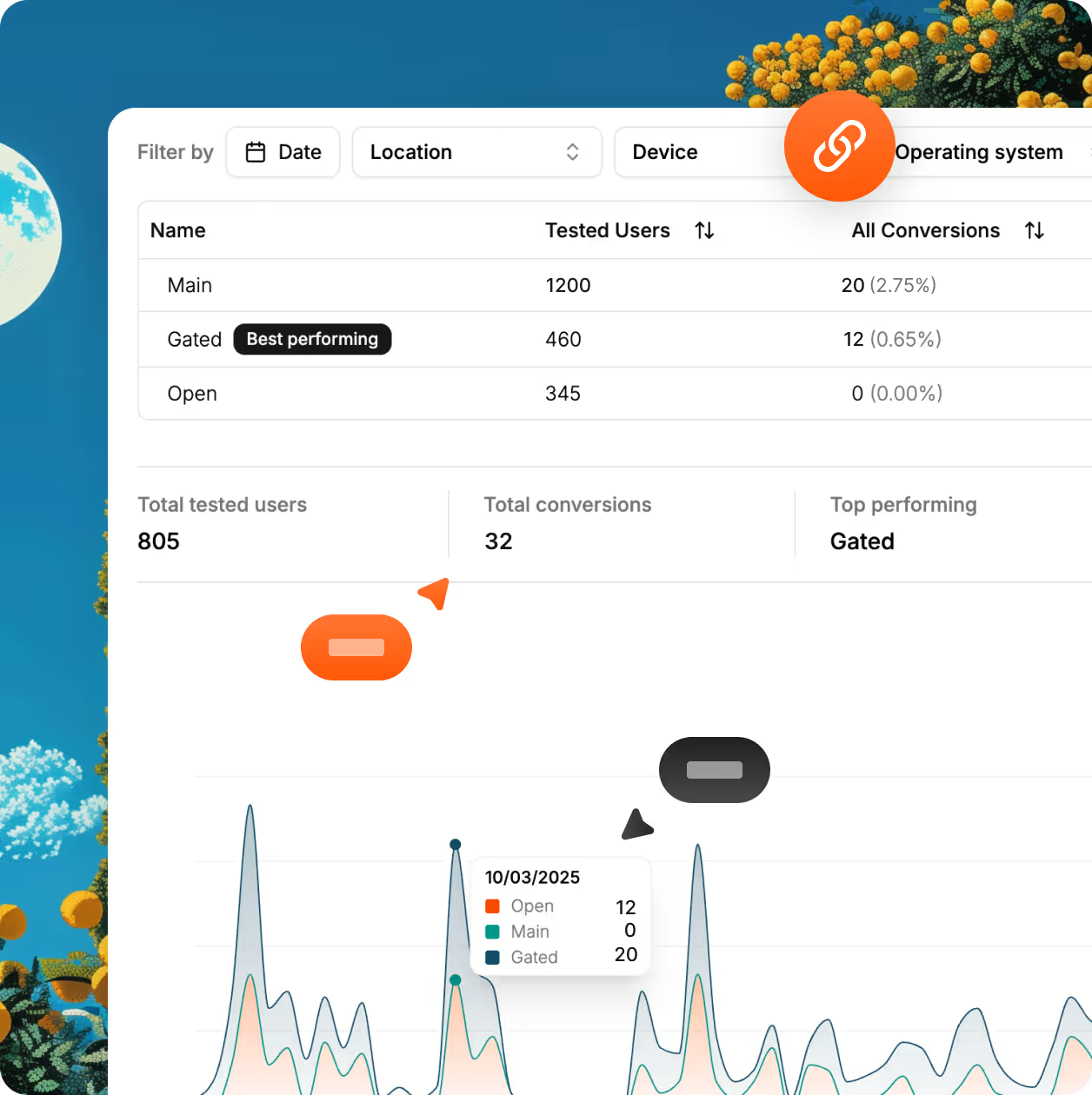
See how each page performs as your test runs. Optibase shows clear results for clicks, forms, views, and full flows across every URL. Reports help you spot the winning page and understand why it works. You can also send your data to GA4, Mixpanel, HubSpot, or any other tool using our API.
Built for growth

More than just testing

AI traffic split

AI helps send more visitors to the version that works better, so your test reaches a clear winner faster without extra work.

Auto-stop tests

Set rules and let Optibase stop the test for you. When a version wins or a goal is reached, the test ends and you get clear results.

Audience segmentation

By segmenting your audience based on their geolocation, browser, OS and screen size, you can limit who is exposed to your tests.

Personalization

Show different content based on who visits your site. Tailor pages by audience, behavior, or context to improve relevance and conversions.

Heatmaps

See where users click, scroll, and focus. Heatmaps help you understand behavior so you know what to test and what to improve next.

User recordings

Watch real sessions to see how people use your site. Spot friction, confusion, and missed clicks that numbers alone can’t show.
FAQ

Frequently asked questions

What is split testing?
Split URL testing is a way to compare two or more different pages using separate URLs. Each visitor is sent to one page version, and you measure which page performs better. It is often used to test new landing pages, full designs, or complete flows where changes are too big for simple A/B tests.
What is the difference between split URL testing and A/B testing?
A/B testing compares different versions of the same page on one URL. Split URL testing compares completely different pages on separate URLs. A/B tests are best for small changes like copy or buttons. Split URL tests are better for big changes like new layouts, landing pages, or full signup flows.
Can I test two completely different page layouts?
Yes. Split URL testing is made for this. You can test two or more pages with completely different layouts, designs, and content. Each version has its own URL, so you can compare full page ideas, new landing pages, or different flows and see which one works best.
Does split URL testing impact SEO?
No. Split URL testing with Optibase does not harm SEO. Each page loads on its own URL with no redirects, flicker, or blocked content. Search engines can crawl pages normally, and page speed stays fast. This makes split URL testing safe for SEO, even when testing full pages or important landing pages.
How do you split URL test a page in Webflow?
To split URL test a page in Webflow, first create separate page versions in the Webflow Designer, each with its own URL. Then install Optibase using the Webflow App or one script. Add the page URLs in Optibase, choose your conversion goals, and set how traffic is split. Optibase sends visitors to each page and tracks which one performs better.
Does split URL testing affect performance?
No. Split URL testing with Optibase does not affect performance. Pages load on their own URLs with no redirects or delays. There is no flicker, and your site speed stays the same. This makes split URL testing safe for user experience, SEO, and paid traffic, even when testing full pages or flows.
Do I need a developer?
No. You do not need a developer to run split URL tests with Optibase. You create your page versions in the Webflow Designer like you normally do. Then you add the page URLs in Optibase and start the test. There is no code to write and no developer help needed.
Is split URL testing included in the free plan?
Yes. Split URL testing is included in the Optibase free plan. You can install Optibase, add your page URLs, run split tests, and track results without paying. The free plan is a good way to try split URL testing on your site before upgrading for more traffic and advanced features.