A/B testing

Optimize conversion rates with precision A/B testing

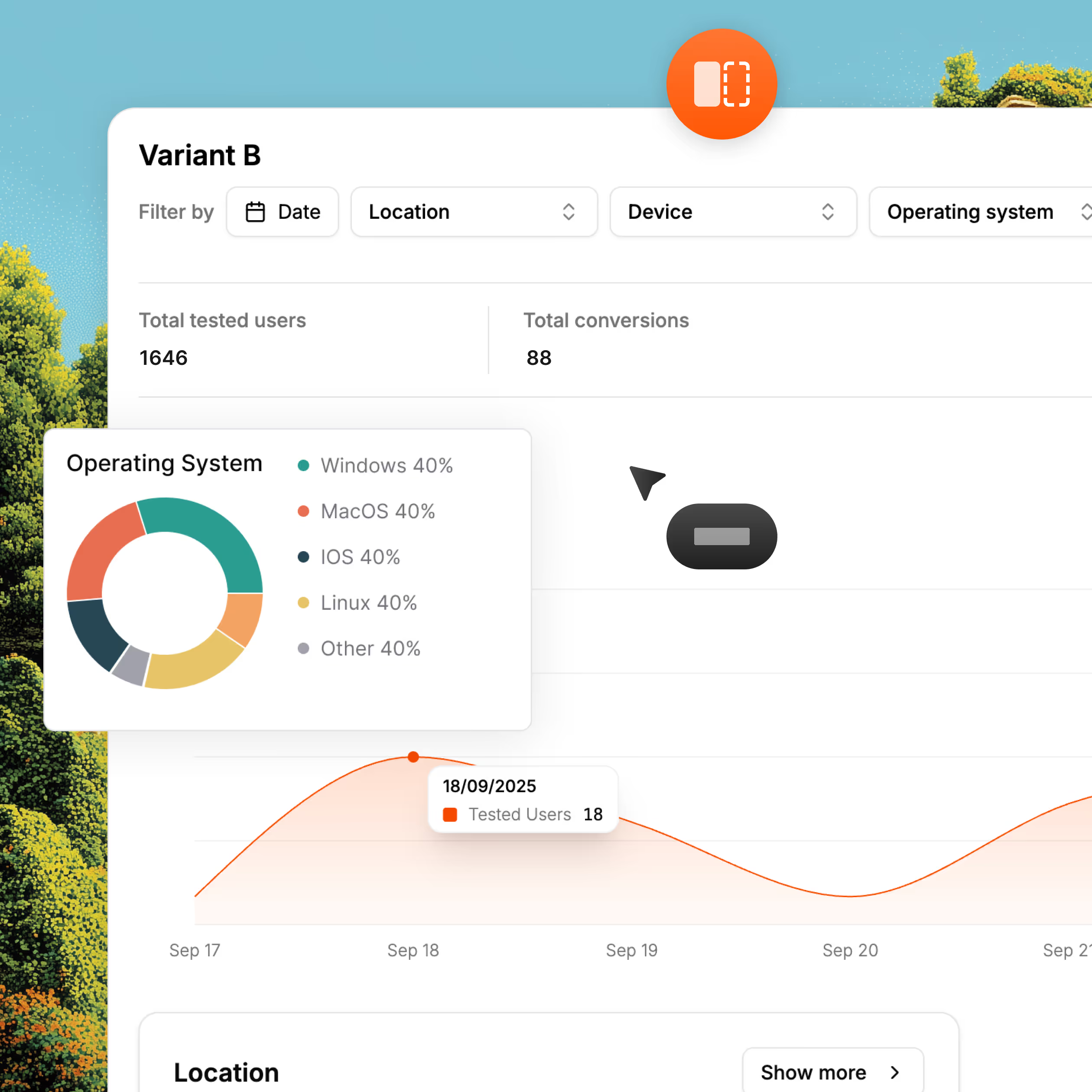
Test and compare different web elements to optimize user experience, drive conversions and find out what works best with your audience. No guessing, all tests are supported by statistical data.
No flickering: No flickering that can mess up your website's UX.
Performance: Test without impacting your website's performance.
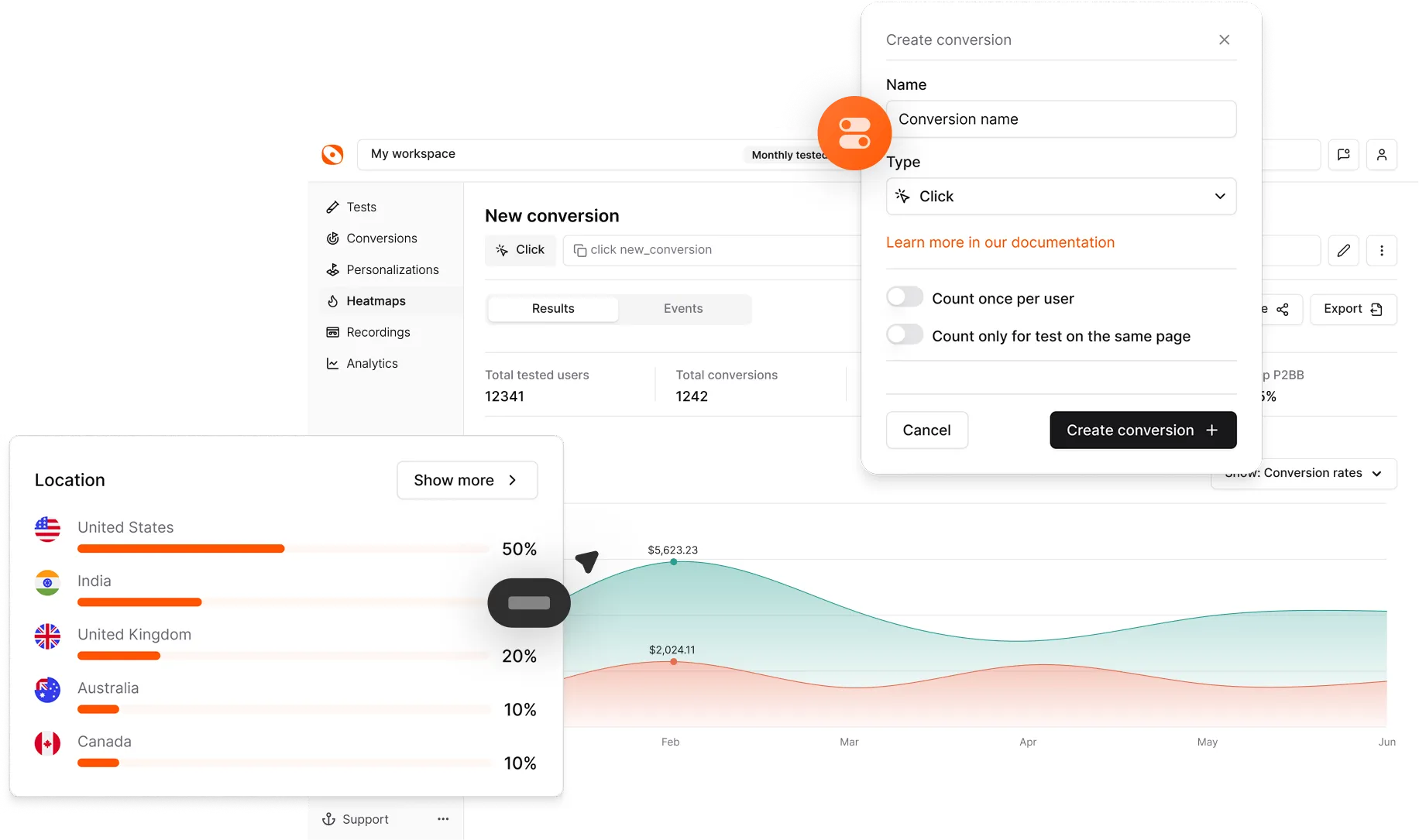
Audience segmentation: Location, screen size, OS and browser.
Header image
Join 1800+ companies already testing with Optibase
Easy test setup

Test your ideas with ease

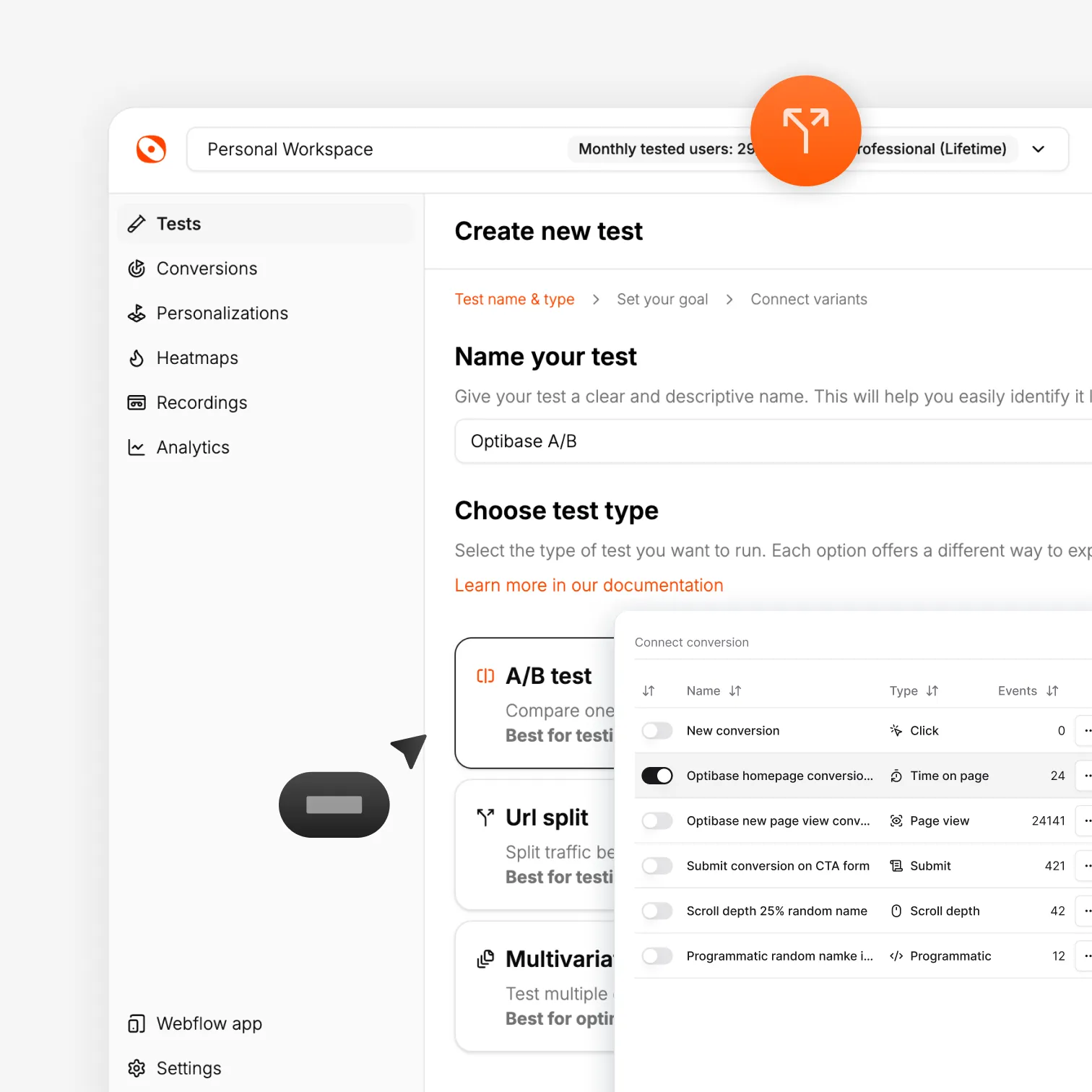
Optibase helps you try new ideas on your site fast. You do not need code. You do not need help from a developer. You can set up a test in minutes and see what works best.

No developers needed

Install Optibase fast using the Webflow app. No scripts or code. Anyone can set up tests with a few simple clicks.

Launch tests in minutes

Optibase fits into your Webflow flow. Make changes, start your test, and go live fast without slowing your team down.

Test anything you can build

Change words, layouts, buttons, sections, or even full pages. If you can make it in Webflow, you can test it in Optibase. It is that simple.
Fast site performance

Testing without slowdown

Optibase runs clean and light. Your pages load fast, your visitors see the right version right away, and your SEO stays safe. You get the power to test without hurting site speed or search results.

No flicker for visitors

Your tests show the right version right away. There is no flash or jump on load, so users stay focused and SEO stays safe.

Lightweight script

Optibase adds only a tiny script to your site. It keeps your pages fast and your UX steady, even when you run many tests.

No performance impact

Google sees a stable, normal page. There are no risky tricks. Your rankings stay safe while you test and improve your site.
Clear test results

See what works and why

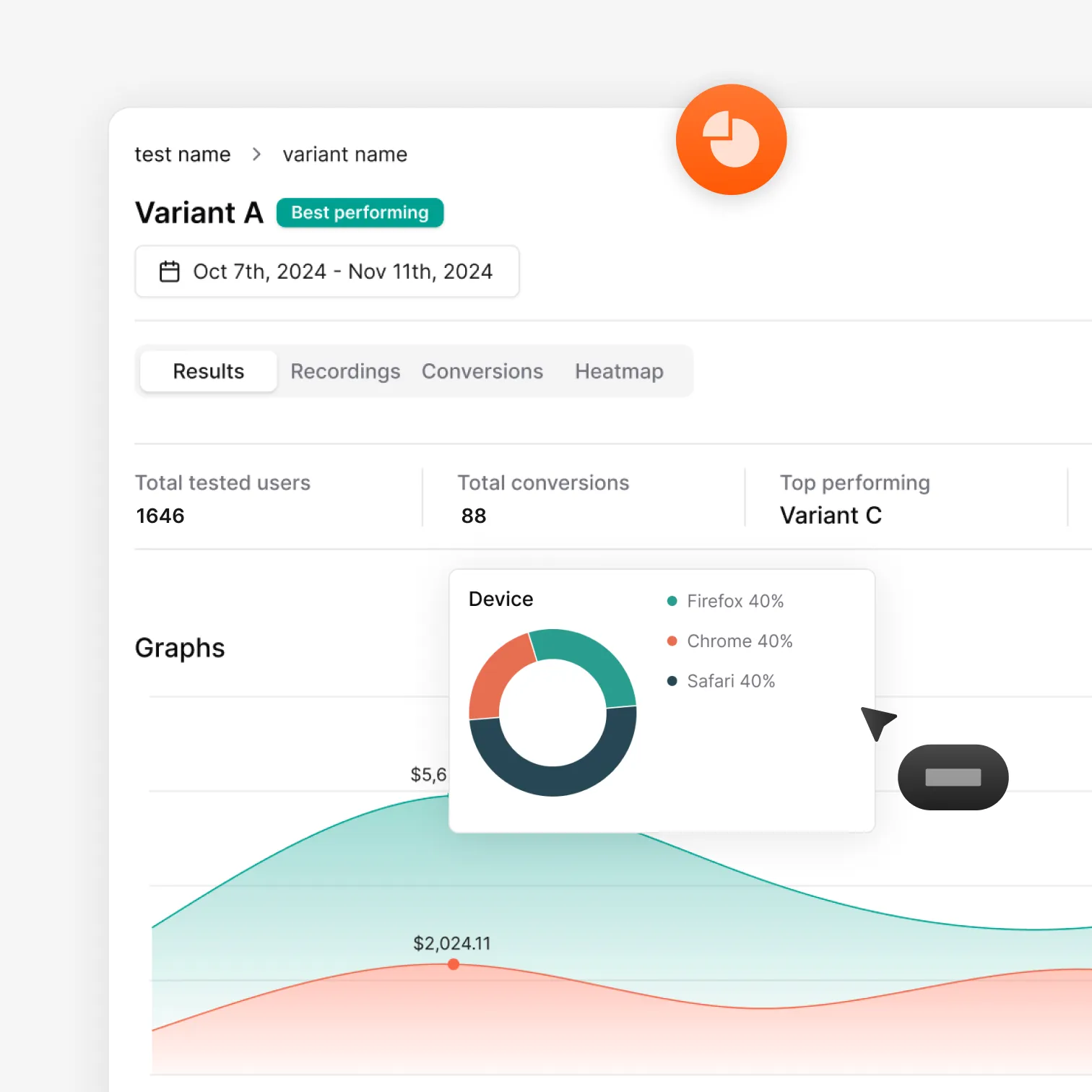
Optibase gives you clear results for every test. You can follow each version, track conversions, and see what helps your site grow. The data is easy to read, so your team can make smart choices with confidence.

View results

See how each version performs. Track clicks, signups, and other goals. Know what works so you can make better choices.

Easy reporting

Get test updates sent to you on a schedule you choose. Pick daily, weekly, every two weeks, or monthly reports.

Works with your tools

Connect GA4, Mixpanel, HubSpot, or anything else. Use our Open API to send data wherever your team needs it.
How to

How to A/B test in Webflow?

Optibase makes testing easy for your whole team. You install it once, pick what you want to test, choose who sees each version, and then watch the results come in.

Install Optibase

Install Optibase in the way that works best for your team. You can add it through the Webflow App, which connects your site and adds the script for you right away. You can also install it by pasting one script into your Webflow project settings and then linking the site inside your Optibase account.

Create variants

Build your variants right inside the Webflow Designer. Change anything you want, such as text, layouts, buttons, or full sections. After you publish your updates in Webflow, connect each version in Optibase using the app or element IDs. You can create two versions or many if you want to test more ideas.

Set your conversions

Choose how you want to measure success for your test. You can track clicks, form submits, page views, scroll depth, time on page, or custom events. Pick one goal or mix many. Use the Webflow app to mark elements or add IDs yourself. You can also fire programmatic events with simple JavaScript when needed.

Choose audience and traffic split

Pick who should see each version of your test. You can target visitors by location, screen size, browser, or operating system. Set a manual split if you want full control, or let AI pick the best mix for you. Your variants are already in the Webflow Designer, so you know exactly what each visitor will see.

Run your test

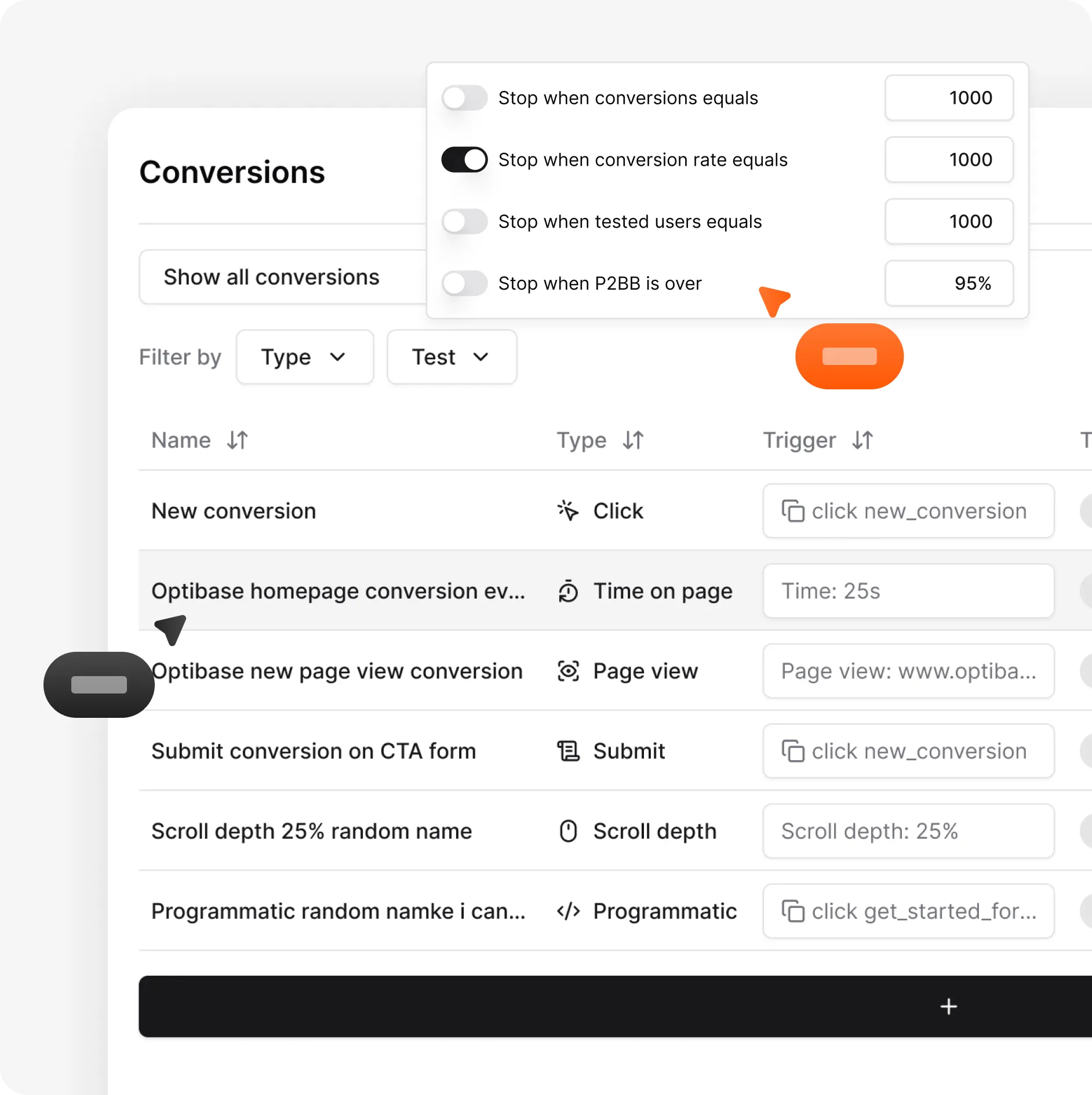
Turn your test on with one click in Optibase. There are no extra steps and no settings to adjust. Your test begins right away, and you can see its live status at any time. You can also set auto stop rules, such as hitting a goal number, reaching a conversion rate, or stopping when P2BB shows a clear winner.

Analyze results

Watch your results update as your test runs. See how each version performs with clear charts and easy data. You can track clicks, forms, views, scroll depth, time on page, or custom events. Check daily or use simple reports to spot the winner. When your test ends, you know exactly which version brings better results.
Why teams choose us

Easy testing for every team

AI traffic split

AI helps send more visitors to the version that works better, so your test reaches a clear winner faster without extra work.

Auto-stop tests

Set rules and let Optibase stop the test for you. When a version wins or a goal is reached, the test ends and you get clear results.

Audience segmentation

By segmenting your audience based on their geolocation, browser, OS and screen size, you can limit who is exposed to your tests.

Webflow native

Optibase works inside Webflow, so you can build, change, and test your pages without switching tools or adding complex setup.

GDPR compliant

Optibase is GDPR compliant. We have implemented the necessary measures to ensure that our app complies with the GDPR.

Affordable pricing

Get the same testing power other tools offer, but at a much lower price. Optibase keeps costs low so your team can test more for less.
FAQ

Frequently asked questions

How do I run A/B tests in Webflow?
You can run A/B tests in Webflow by using a tool like Optibase. First, install Optibase through the Webflow App or by adding one script to your project. Then choose the page you want to test and create new versions in the Webflow Designer. After you set your conversions and pick your traffic split, turn on the test in Optibase. Your results update as visitors use your site, and you can see which version works best.
What can I test with Optibase?
You can test almost anything you build in Webflow with Optibase. This includes text, images, buttons, forms, layouts, sections, and full pages. You can try new hero designs, different CTAs, or full page changes. If you can design it in the Webflow Designer, you can run an A/B test on it with Optibase.
Does this work with WordPress?
Yes. Optibase works with WordPress and almost any other platform. You only need to install a small script on your site and add IDs to the elements you want to track. After that, you can run A/B tests the same way you do on Webflow. The setup is simple, and you do not need extra tools or code.
Does it work with my existing analytics tools?
Yes. Optibase works with most analytics tools you already use. You can connect GA4, Mixpanel, or HubSpot, and send your test results to them. You can also use our Open API to push data anywhere your team needs it. This helps you keep all your reporting in the same place while still running A/B tests with Optibase.
Does Optibase slow down my Webflow site?
No. Optibase does not slow down your Webflow site. It uses a very small script that loads fast and keeps your pages quick. Your tests do not flicker, and your visitors see the right version right away. This helps protect both user experience and SEO. You can run A/B tests in Webflow with Optibase without hurting speed or performance.
Do I need a developer?
No. You do not need a developer to use Optibase. You can install it through the Webflow App or add one script to your project. After that, you create and publish all your changes in the Webflow Designer. Optibase handles the testing for you, so your team can run A/B tests without writing code or asking for developer help.
How long should a test run?
A good A/B test should run until you have enough visitors to trust the result. For many sites, this is at least 1 to 2 full weeks, but the exact time depends on your traffic and your goal. You need enough users in each version to reach a clear outcome. Optibase can also auto-stop your test when a winner appears. If you want a precise number for your site, you can use our free A/B test duration calculator to see how long your test should run.
Is there a free plan?
Yes. Optibase has a free plan that lets you run A/B tests without paying. You can install the script, set up your tests, and track your results with no cost. It is a great way to try Optibase on your site and see how it works before you upgrade to a paid plan for more traffic and advanced features.